
Origin
Origin is a Git repository hosting service. Buildkite Pipelines integrates with Origin to create builds from branch pushes, tag pushes, and pull request events. The integration can also check out private repositories on Buildkite hosted agents and publish build results to Origin.
Cursor customers using Origin receive a 30-day trial of the Buildkite evaluation plan when they sign up through Origin. See Buildkite pricing for plan details.
When the trial ends, you can request an extension, switch to the Free plan, upgrade to the Pro plan, or discuss the Enterprise plan with Buildkite. If you take no action, your Buildkite organization becomes inactive.
Connect Origin
You can install Buildkite from an Origin codebase's Apps settings or from an existing Buildkite account. The Origin app can access all repositories in an Origin installation or only repositories selected during installation.
The Buildkite app supports Origin-hosted repositories. It does not support repositories mirrored from GitHub, which continue to use GitHub for CI.
The Buildkite plugin in the Cursor Marketplace adds the Buildkite MCP server and skills to Cursor. It does not connect an Origin repository to Buildkite Pipelines.
Connect from Origin codebase settings
You must be an Origin administrator to install Buildkite from a codebase's settings. Your team must also have enabled Origin and claimed a codebase name.
Open Origin codebase Apps settings.
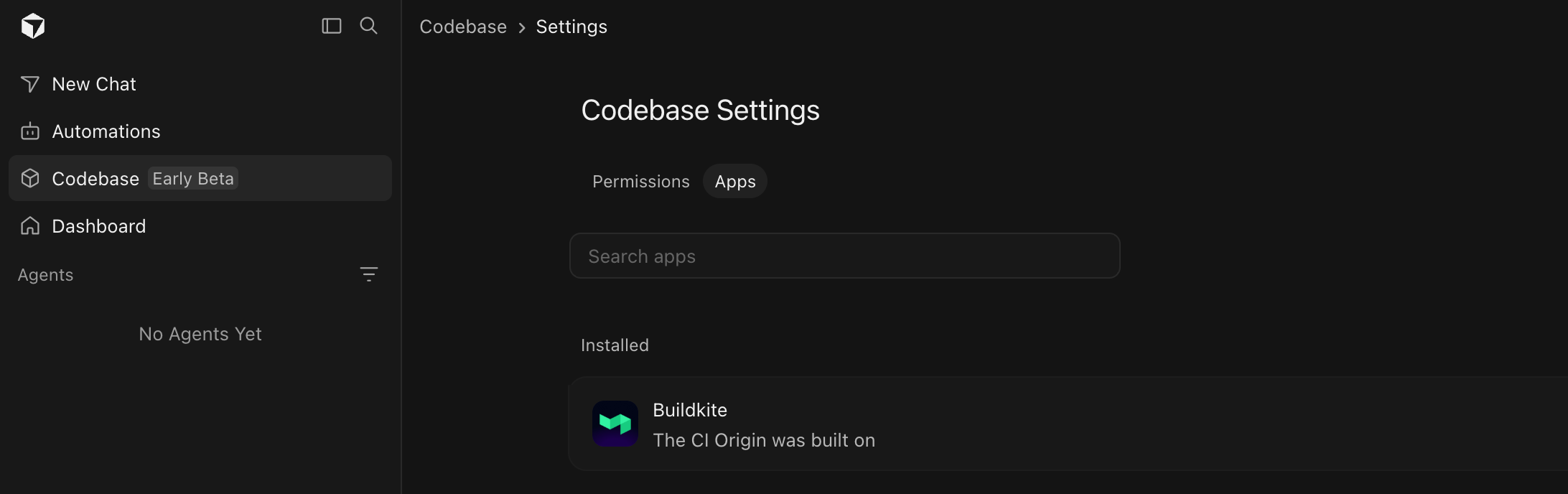
In Codebase, open Settings > Apps to find Buildkite.
If Buildkite appears under Installed, the app is already installed for the codebase. You can create a pipeline for an accessible repository.
Otherwise, install Buildkite:
- Select Buildkite.
- Choose whether to grant access to all repositories or selected repositories.
- Install the app. Origin redirects you to Buildkite.
- Sign in to an existing Buildkite account or sign up for a new account.
- Select or create a Buildkite organization. Buildkite names the verified Origin account before you confirm the connection. Check that it matches the installation you started from.
- On the New Pipeline page, select a repository and create the pipeline.
Buildkite returns you to the Origin organization selection after signing up with GitHub, linking an existing account, or completing two-factor authentication. Buildkite also preserves the Origin setup when the email sign-up process redirects you to your only single sign-on (SSO) organization.
To confirm that Buildkite is active for a specific Origin-hosted repository, open the repository, then select Settings > Apps.
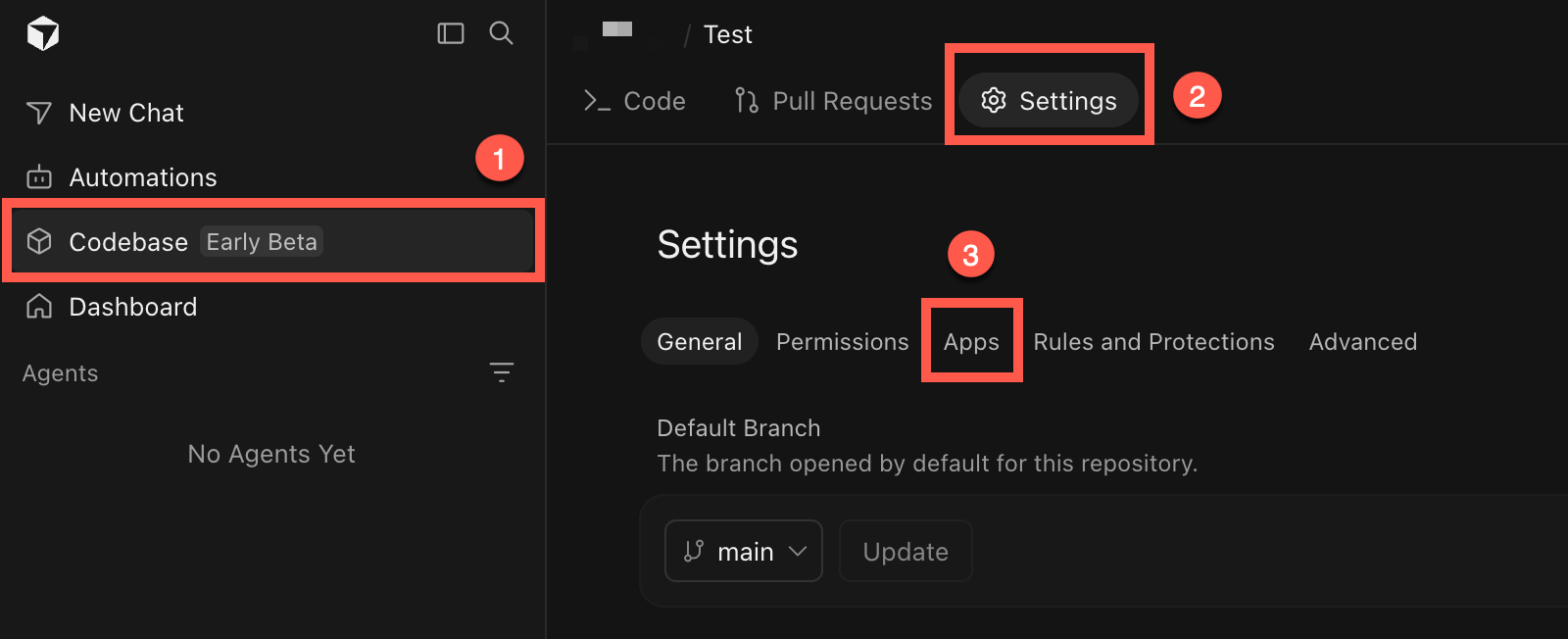
Confirm that Buildkite appears under Installed.
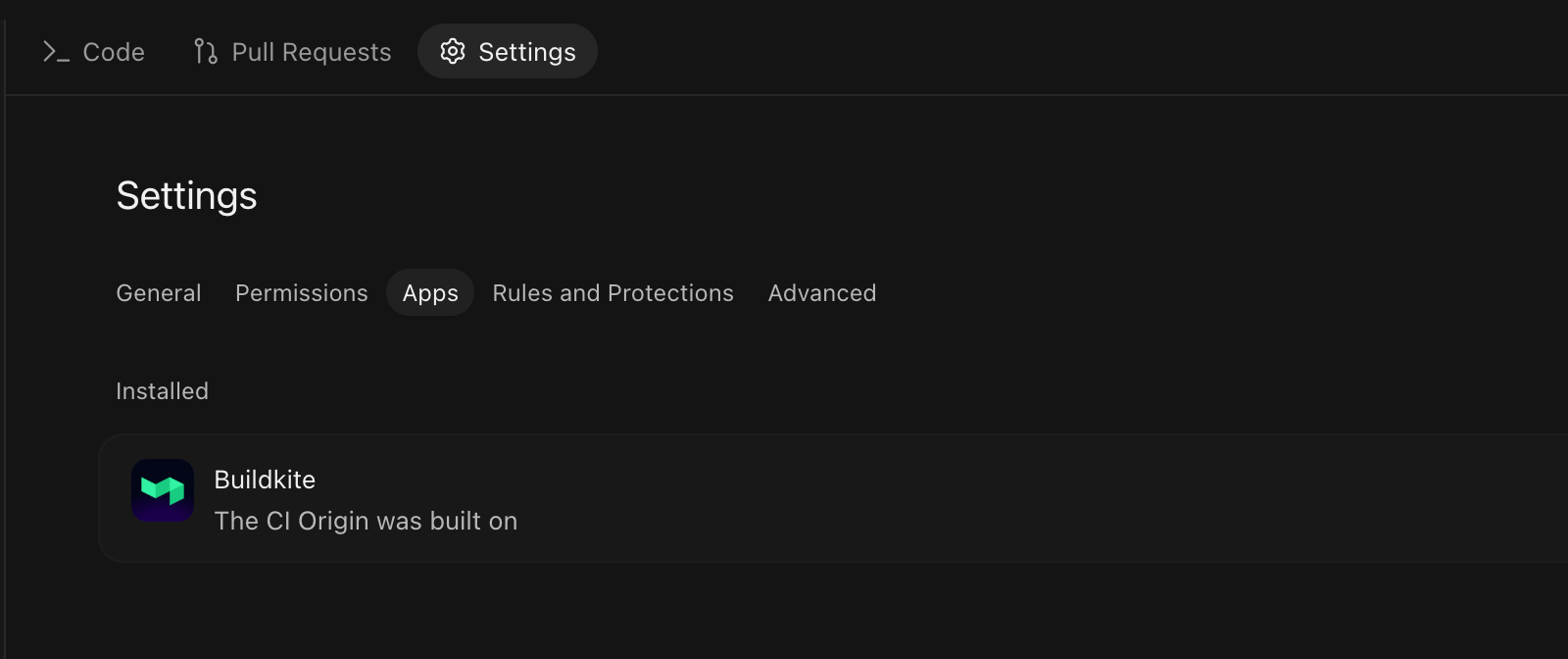
The repository Apps settings list Buildkite after installation.
Connect from Buildkite
You must be a Buildkite organization administrator to connect Origin to an existing Buildkite organization.
Start the connection from either of these locations:
- On the New Pipeline page, select Connect Origin account.
- Select Settings > Repository Providers. In Add Provider, select Origin. Buildkite redirects you to Origin.
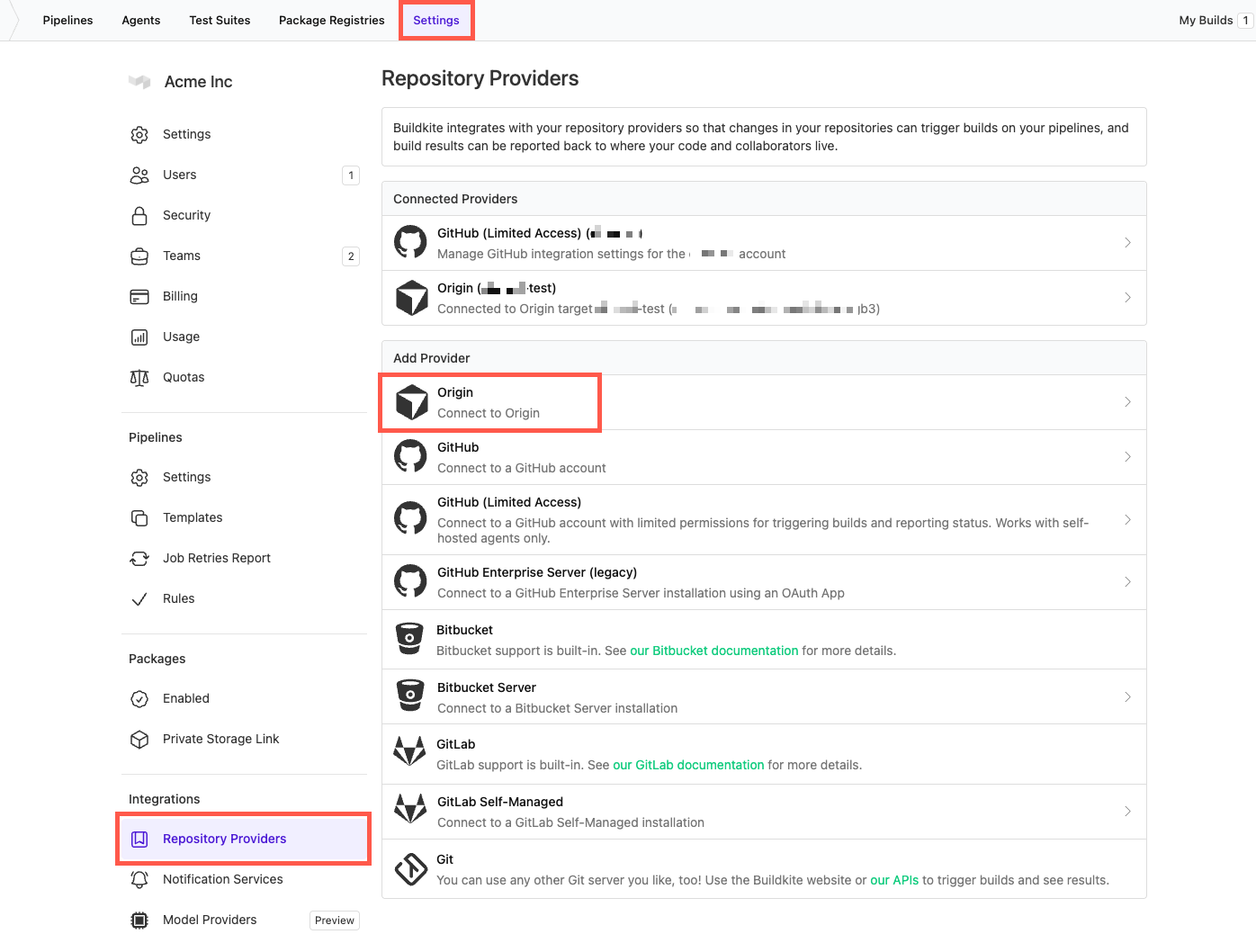
Complete the connection in Origin:
- In Origin, select the target and choose whether to grant access to all repositories or selected repositories.
- Install the app. Origin returns you to Buildkite.
- If you started from Repository Providers, create a pipeline for an accessible repository.
The app requests read access to repository contents, pull requests, pull request reviews, and repository labels. It also requests read and write access to checks so Buildkite Pipelines can publish build results.
Update app permissions
Existing Origin installations keep their approved permissions when the app requests additional permissions. If the stored grants lack currently requested permissions, the connected Origin provider settings show an Update permissions notice. Fully granted installations do not show the notice.
The update requests read access to submitted pull request reviews (repository:pull_requests:reviews:read) and repository labels (repository:labels:read) together. Review-triggered builds require review access. Reading labels assigned to a pull request requires repository:pull_requests:read. The separate repository:labels:read permission reads repository label definitions. The update adds no write permissions and preserves existing permissions.
To approve the additional permissions, you need Buildkite organization administrator access and Origin namespace administrator access:
- In Buildkite, select Organization Settings > Repository Providers > the connected Origin provider.
- Select Update permissions to open the consent screen in Origin.
- In Origin, select the same existing installation and keep its current repository selection. Review New Permissions and Granted Permissions, then select Reinstall.
- Return to Buildkite. Buildkite confirms the installation's grants before clearing the notice. If approval is incomplete, the notice remains.
Canceling the update preserves current access, including push and pull request events, checkout, and check reporting. Approval does not enable build triggers or unsuspend the installation. Configure build triggers separately.
Manage repository access
The Origin provider settings show whether the installation can access all repositories or selected repositories. To change this access, select manage your installation settings in Origin.
Disconnect Origin
To disconnect Origin from your Buildkite organization:
- Select Settings > Repository Providers > Origin.
- In Disconnect, select Disconnect.
Disconnecting the provider from Buildkite does not uninstall the app in Origin.
If the app is uninstalled in Origin, Buildkite disconnects the provider. For organizations with access to the Audit Log, this action is recorded there.
Suspended installations
Origin can suspend an app installation. Buildkite recognizes the suspension and keeps the installation unavailable until Origin unsuspends it.
While an installation is suspended:
- Origin repository events, including branch pushes, tag pushes, and pull request events, do not create builds.
- Buildkite Pipelines can't check out code, publish checks, or issue hosted-agent checkout credentials for repositories in the installation.
- Settings > Repository Providers > Origin shows This Origin integration is currently suspended., with a link to manage or unsuspend the installation in Origin.
Unsuspending the installation in Origin automatically restores it in Buildkite. You don't need to reconnect the installation or recreate its pipelines.
Create a pipeline
After connecting Origin, create a pipeline from a repository that the app can access:
- Select Pipelines > New Pipeline.
- From Git scope, select the Origin installation. It appears as Origin (target-name).
- From Repository, search for and select the repository.
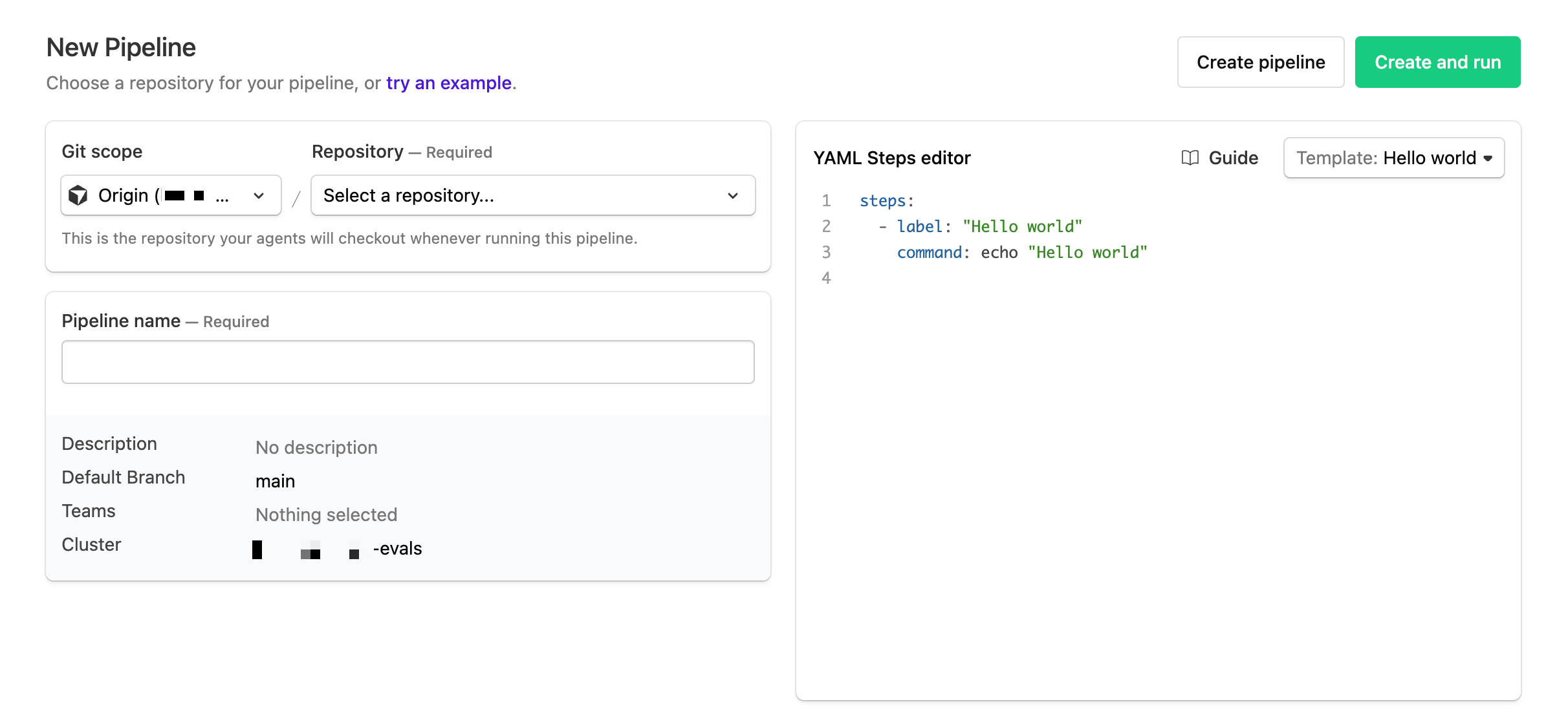
- Complete the remaining pipeline settings, then select Create pipeline.
Buildkite Pipelines validates access to the selected repository and saves its canonical HTTPS checkout URL. If the repository contains .buildkite/pipeline.yml, the YAML Steps editor automatically selects Pipeline upload.
Select the repository from the connected Origin installation instead of entering its URL manually. The association lets Buildkite Pipelines provide hosted-agent checkout credentials, receive repository events, and publish check runs.
Change a pipeline repository
To associate an existing pipeline with an Origin repository:
- Select Pipelines > your pipeline > Settings, then select the repository settings. This settings page is named after the pipeline's current provider, such as GitHub, or Repository for a generic Git repository.
- Select Change repository.
- Select the Origin installation and repository.
- Select Save Repository.
If the associated Origin installation is disconnected, the repository settings show The Origin installation for this pipeline is disconnected. Organization administrators can select Reconnect Origin to restore the connection. Buildkite Pipelines preserves the existing repository URL and provider settings while the installation is disconnected.
If the associated installation is suspended instead, the repository settings show The Origin installation for this pipeline is suspended. Organization administrators can select Manage Origin installation to open the provider settings and unsuspend the installation in Origin.
Check out private repositories on hosted agents
Jobs running on Buildkite hosted agents can check out a connected private Origin repository without an SSH key or extra pipeline configuration. Before checkout, Buildkite Pipelines creates a short-lived repository:contents:read token scoped to the exact repository configured on the pipeline.
Native Origin authentication applies only to Buildkite hosted agents.
Use Origin as a clone mirror for GitHub
You can keep GitHub as the source of truth, build trigger, and build-status destination for a pipeline while using Origin as a remote clone mirror. After Buildkite Pipelines resolves the exact commit from GitHub, supported jobs fetch the commit from Origin. If the commit is not available from the mirror, the agent falls back to GitHub.
Remote mirror checkout requires Git 2.45.0 or later. Branch-build support is available in Buildkite agent v3.136.0 and from v3.136.2 onward. Buildkite agent v3.136.1 ignores remote mirrors. Pull request builds that check out the head commit require Buildkite agent v3.137.0 or later. Jobs that do not meet these version requirements fetch from GitHub instead.
Tag builds and pull request builds that use the GitHub test merge commit bypass the mirror and fetch from GitHub.
An Origin mirror can reduce repeated GitHub fetches for pipelines that create many jobs from a single push. The effect on build time depends on the pipeline's workload.
Clone mirrors must be enabled for your Buildkite organization. To configure an existing GitHub pipeline:
- Select Pipelines > your pipeline > Settings > GitHub.
- In Git Clone Mirror, enter the Origin repository URL in Clone mirror repository URL.
- Select Save Clone Mirror.
When the pipeline doesn't have a clone mirror configured yet, Git Clone Mirror can help you find the Origin mirror. To replace an existing clone mirror, enter the new URL manually.
If Origin is connected to your Buildkite organization and exactly one Origin repository mirrored from GitHub has the same name as the pipeline's GitHub repository, Git Clone Mirror shows Origin mirror found. Select Use Origin mirror to fill in the mirror's URL, then save the clone mirror.
If Origin is not connected, organization administrators see Clone from an Origin mirror instead. Select Connect Origin, complete the connection in Origin, and then return to the pipeline's settings to finish setting up the clone mirror.
You can also set a pipeline's clone_mirror_url using the REST API. Buildkite agents receive the configured URL in BUILDKITE_GIT_REMOTE_MIRROR_URL.
Configure build triggers
Select Pipelines > your pipeline > Settings > Origin to configure which Origin events create builds.
Buildkite Pipelines receives signed events through the installed Origin app. You do not need to configure a webhook for each pipeline.
Branch and tag pushes
- Build branches: Creates builds when commits are pushed to branches. This setting is enabled by default.
-
Build tags: Creates builds when tags are pushed. This setting is disabled by default. For tag builds,
BUILDKITE_TAGandBUILDKITE_BRANCHcontain the tag name.
Deleted branches and tags do not create builds.
A single push event creates builds for up to 1,000 distinct branch and tag names. If a push affects more names than that, Buildkite Pipelines builds the first 1,000 names in payload order and skips the rest. The push does not fail or retry because of the limit.
Pull requests
Build when pull request is opened or updated creates a build when a pull request is opened or its head branch is pushed. This setting is enabled by default.
Pull request builds ignore pipeline-level branch filters. When pull request builds are disabled, a push to the same branch can still create a branch build if Build branches is enabled.
With Build when pull request is opened or updated enabled, you can enable additional triggers. Each is disabled by default:
- Build when pull request becomes ready for review: Creates a build when a draft pull request is marked ready for review. The build treats the pull request as no longer a draft, so a conditional filter that excludes drafts can allow it.
- Build when pull request is reopened: Creates a build when a closed pull request is reopened.
-
Build when pull request target branch changes: Creates a build when a pull request changes target branch, such as from
maintorelease. Pushing commits to the target branch does not trigger this event. - Build when pull request title, description or target branch changes: Creates a build when any of these values changes. Either this setting or Build when pull request target branch changes enables builds when the target branch changes. Enabling both still creates only one build per qualifying event.
These builds use the head commit and target branch from the event, even if the pull request has changed before the event is processed. Other conditional filters still apply.
Skip when pull request has existing build for commit and branch is enabled by default. It skips a pull request build when an earlier webhook build exists for the same commit and branch. For example, opening a pull request after its branch build does not create another build unless you disable this setting.
Ready-for-review builds respect this skip setting. Enabled reopen, edit, and target-branch-change events can rebuild the same commit regardless of the skip setting. Retrying the same webhook delivery does not create another build. Matching push and pull request head notifications do not create duplicate pull request builds.
Pull request labels
Pull request labels support must be enabled for your Buildkite organization. When enabled, pull request builds include labels before conditional filtering. A push can also create a build with pull request context and labels when pull request builds are enabled and an open pull request matches the pushed branch and commit. Ordinary branch builds without pull request context do not include labels.
Use build.pull_request.labels in build or step conditions, or read the comma-separated BUILDKITE_PULL_REQUEST_LABELS in jobs. A pull request can have up to 100 labels. Buildkite Pipelines uses labels from the event when provided, or retrieves them from Origin during processing. Labels on an existing build do not change afterward.
If Buildkite Pipelines can't retrieve a pull request's labels, it retries instead of creating the affected build without them. An extended outage can delay or prevent affected pull request builds.
Build when pull request labels change creates a build when a label is added to or removed from a pull request. This setting is disabled by default. It requires label support for your organization and Build when pull request is opened or updated to be enabled.
Only open pull requests that have not been merged qualify. For label-change events, Buildkite Pipelines retrieves the current head commit, base branch, draft state, and labels. A delayed event can therefore build a newer head commit than the one present when the label changed.
Label-triggered builds respect Skip when pull request has existing build for commit and branch, including an earlier pull request build for that commit and branch. Disabling this setting allows a separate build for each distinct label change on the same commit. Retried deliveries of the same label event still create at most one build.
Submitted reviews
Build when pull request review is submitted creates a build when a submitted review approves, requests changes, or comments on a pull request. This setting is disabled by default and works independently of Build when pull request is opened or updated. Review-triggered builds require review access.
The build uses the reviewed commit, even if the pull request has advanced to a newer commit. The remaining pull request context uses the current head branch, base branch, draft state, and labels when label support is enabled. If the reviewed commit is no longer available, Buildkite Pipelines skips the build instead of substituting the current head commit. Review dismissals and reviews on closed or merged pull requests do not create builds.
Distinct submitted reviews can build the same commit regardless of Skip when pull request has existing build for commit and branch. Retried deliveries of the same review event do not create another build. Other conditional filters still apply.
A review of a superseded commit does not skip queued builds or cancel running builds. A review of the current head commit follows the pipeline's Skip Intermediate Builds and Cancel Intermediate Builds settings.
Conditional filtering
Use a conditional expression to filter incoming Origin events before the other build trigger settings apply.
BUILDKITE_ORIGIN_EVENT contains the full event.type of the Origin webhook that created the build:
| Origin event | Build trigger |
|---|---|
repository.pushed |
Branch or tag push, including a push that creates a pull request build |
pull_request.created |
Pull request opened |
pull_request.head_ref.pushed |
Pull request head branch pushed |
pull_request.published |
Pull request marked ready for review |
pull_request.reopened |
Pull request reopened |
pull_request.metadata.updated |
Pull request title or description edited |
pull_request.base_ref.updated |
Pull request target branch changed |
pull_request.label.added |
Label added to a pull request |
pull_request.label.removed |
Label removed from a pull request |
pull_request.review.submitted |
Pull request review submitted |
For example, this condition accepts builds created by pull request creation events:
build.env("BUILDKITE_ORIGIN_EVENT") == "pull_request.created"
The variable is also available in pipeline variable interpolation and job scripts. A duplicate or retried webhook does not replace the event on an existing build. Fresh manual builds do not receive an inferred event; rebuilds copy the original build's environment.
Event and action conditions
For Origin webhook builds, build.source_event and build.source_action expose mapped event and action names in pipeline filters and step conditions. Use BUILDKITE_ORIGIN_EVENT for the full native event name:
| Origin event | build.source_event |
build.source_action |
|||
|---|---|---|---|---|---|
| Origin event | repository.pushed |
build.source_event |
push |
build.source_action |
null |
| Origin event | pull_request.created |
build.source_event |
pull_request |
build.source_action |
opened |
| Origin event | pull_request.head_ref.pushed |
build.source_event |
pull_request |
build.source_action |
synchronize |
| Origin event | pull_request.published |
build.source_event |
pull_request |
build.source_action |
ready_for_review |
| Origin event | pull_request.reopened |
build.source_event |
pull_request |
build.source_action |
reopened |
| Origin event | pull_request.metadata.updated |
build.source_event |
pull_request |
build.source_action |
edited |
| Origin event | pull_request.base_ref.updated |
build.source_event |
pull_request |
build.source_action |
edited |
| Origin event | pull_request.label.added |
build.source_event |
pull_request |
build.source_action |
labeled |
| Origin event | pull_request.label.removed |
build.source_event |
pull_request |
build.source_action |
unlabeled |
| Origin event | pull_request.review.submitted |
build.source_event |
pull_request_review |
build.source_action |
submitted |
Conditions resolve these values from the recorded native event, including on existing webhook builds. Unmapped events and non-webhook builds, including manual builds and rebuilds, have null event and action values. A push-triggered build remains push with a null action even if it includes pull request context.
build.pull_request.label contains the label added or removed in the triggering webhook, not the current label collection. A removed label remains available through this condition. If the webhook or changed label is unavailable, the value is null.
For example, run a step when the test-gpu label is removed:
steps:
  - command: "echo 'GPU test label removed'"
    if: >-
      build.source_event == "pull_request" &&
      build.source_action == "unlabeled" &&
      build.pull_request.label == "test-gpu"
These mappings do not enable additional build triggers or change which events create builds.
Review metadata conditions
Submitted-review builds expose BUILDKITE_ORIGIN_REVIEW_ID and BUILDKITE_ORIGIN_REVIEW_VERDICT during pipeline filtering, YAML Steps editor interpolation, and step conditions. Both values describe the triggering review, not the current pull request lookup.
The review ID is an opaque string and is also available in jobs. The verdict is available only in conditions and interpolation, not in the job environment. Its values are approve, request_changes, and comment.
For example, run a step only for an approval:
steps:
  - command: "echo 'Review approved'"
    if: build.env("BUILDKITE_ORIGIN_REVIEW_VERDICT") == "approve"
Unrelated events and fresh manual builds do not infer review metadata. Rebuilds retain the original values. Review metadata does not change which commit is built or how duplicate deliveries are handled. Receiving submitted-review events requires review access for the Origin installation.
Publish checks to Origin
Despite the setting name, the integration uses the Origin Checks API rather than commit statuses. The check contains relevant build information and updates as the build progresses.
When Update commit statuses is enabled, Buildkite Pipelines publishes a check to Origin for each build. This setting is enabled by default.
The check suite is named Buildkite / <pipeline-name>. The check run is named Build #<build-number>.
The check shows information relevant to the build state:
- Scheduled and running builds link to the build in Buildkite.
- Passed and failed builds show the run time.
- Failing builds indicate that some jobs have started failing.
- Canceled builds show the cancellation reason, when known.
- Blocked builds link to Buildkite so you can unblock them.
To publish additional checks, such as a check for an individual step with annotations on specific lines of a file, add an Origin check notification to your pipeline.
Configure required checks
Origin identifies required checks by the installed app and the keys of the check suite and check run. Display names are not used for matching.
| Key | Value |
|---|---|
| Check suite key | <buildkite-organization-slug> / <pipeline-slug> |
| Check run key | <pipeline-slug> |
When configuring a required Buildkite check in Origin, select the Buildkite app and use both keys. Retries keep the same keys and appear as separate attempts.
The keys use the current organization and pipeline slugs. If either slug changes, update the required check configuration in Origin to use the new keys.
Use Buildkite tools in Origin
You can give Origin agents access to Buildkite tools by adding Buildkite's remote MCP server or installing the Buildkite plugin. These integrations are separate from connecting Origin as a repository provider.
Add a team MCP server
In the Origin Dashboard, open Integrations & MCP, then add Buildkite as a Team MCP Server with the following endpoint:
https://mcp.buildkite.com/mcp
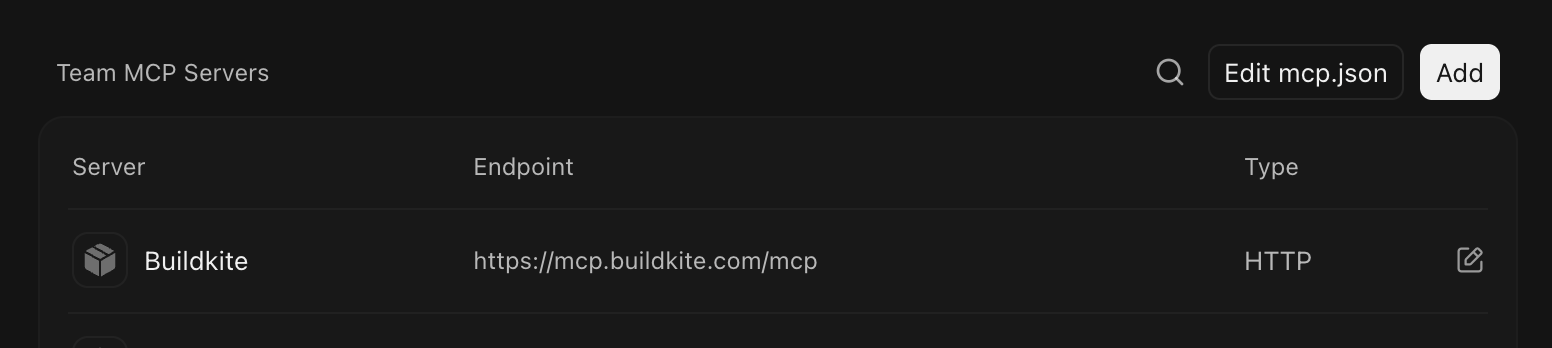
Buildkite appears under Team MCP Servers after configuration.
The remote MCP server uses your Buildkite account to provide tools for working with pipelines, builds, jobs, and tests. For details about its authentication and available tools, see the Buildkite MCP server overview.
Install the Buildkite plugin
In the Origin Dashboard, open Plugins, then select Buildkite. The Buildkite plugin combines the Buildkite MCP server with skills for designing pipelines, troubleshooting builds, and working with the Buildkite agent runtime, CLI, and API.
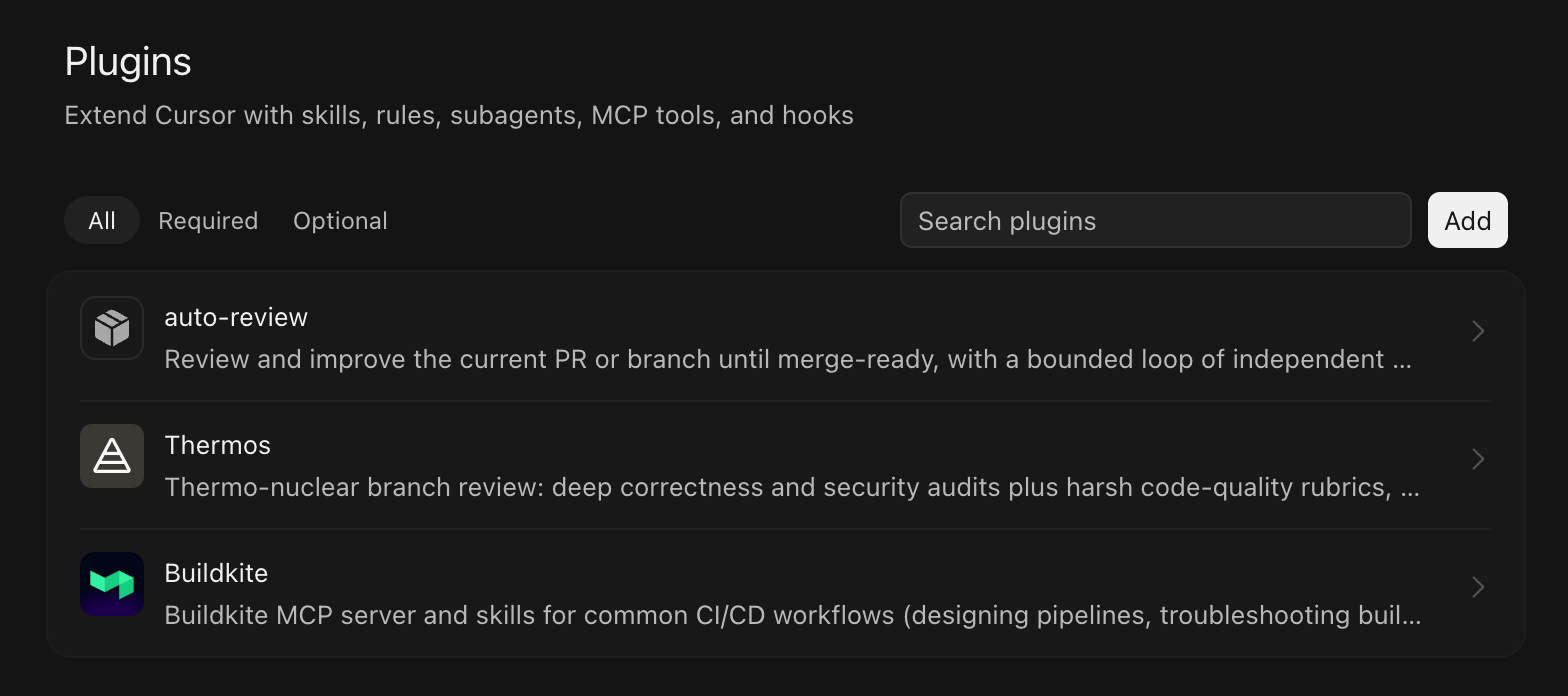
The Plugins page lists the Buildkite plugin with other available plugins.
Troubleshooting
Use the following guidance to troubleshoot Origin connection, checkout, build trigger, and check publishing issues.
Buildkite is missing from Origin Apps
Confirm that your team has enabled Origin and claimed a codebase name. You must also be signed in as an Origin administrator and use an Origin-hosted repository. The Buildkite app does not support repositories mirrored from GitHub.
Open Origin codebase Apps settings directly. You can also open an Origin-hosted repository, select Settings > Apps, then select Manage Apps.
Origin is not available in repository providers
Confirm that you are a Buildkite organization administrator. You can also install Buildkite from Origin codebase Apps settings and select an existing Buildkite organization during setup.
A repository is missing
Open the provider under Settings > Repository Providers > Origin, then select manage your installation settings in Origin. Confirm that the app can access the repository.
Hosted-agent checkout fails
Confirm that the pipeline repository was selected from a connected Origin installation and that the installation still has access to the repository. Native Origin checkout credentials are available only on Buildkite hosted agents.
Builds are not created
Check Build branches, Build tags, Build when pull request is opened or updated, the additional pull request triggers, Build when pull request review is submitted, and any conditional filter under the pipeline's Origin settings. Label-triggered builds also require label support for your organization. Review-triggered builds require the installation's review access. Origin uses the app installation to send events, so there is no pipeline webhook to configure.
If the pipeline's Origin settings show Additional Origin permissions required, select Review Origin permissions to open the connection settings, then update app permissions. If you cannot manage repository providers, ask a Buildkite organization administrator.
If the pipeline's repository settings show The Origin installation for this pipeline is suspended., see Suspended installations.
Checks do not appear
Confirm that Update commit statuses is enabled and that the pipeline remains associated with a repository from the connected Origin installation. If a required check stopped matching after an organization or pipeline rename, update its suite and run keys in Origin.
For Origin availability, see the Cursor status page.
For Origin API guidance, see the Origin API reference.
To inspect the connection using the Buildkite API, see: