Choose the organization for each Remote MCP Server connection
If you belong to more than one Buildkite organization, you can now choose which one each Remote MCP Server connection uses. Add the organization's slug to the server URL:
https://mcp.buildkite.com/mcp?organization=your-organizationWhen your MCP client asks you to authorize, that organization is already selected.
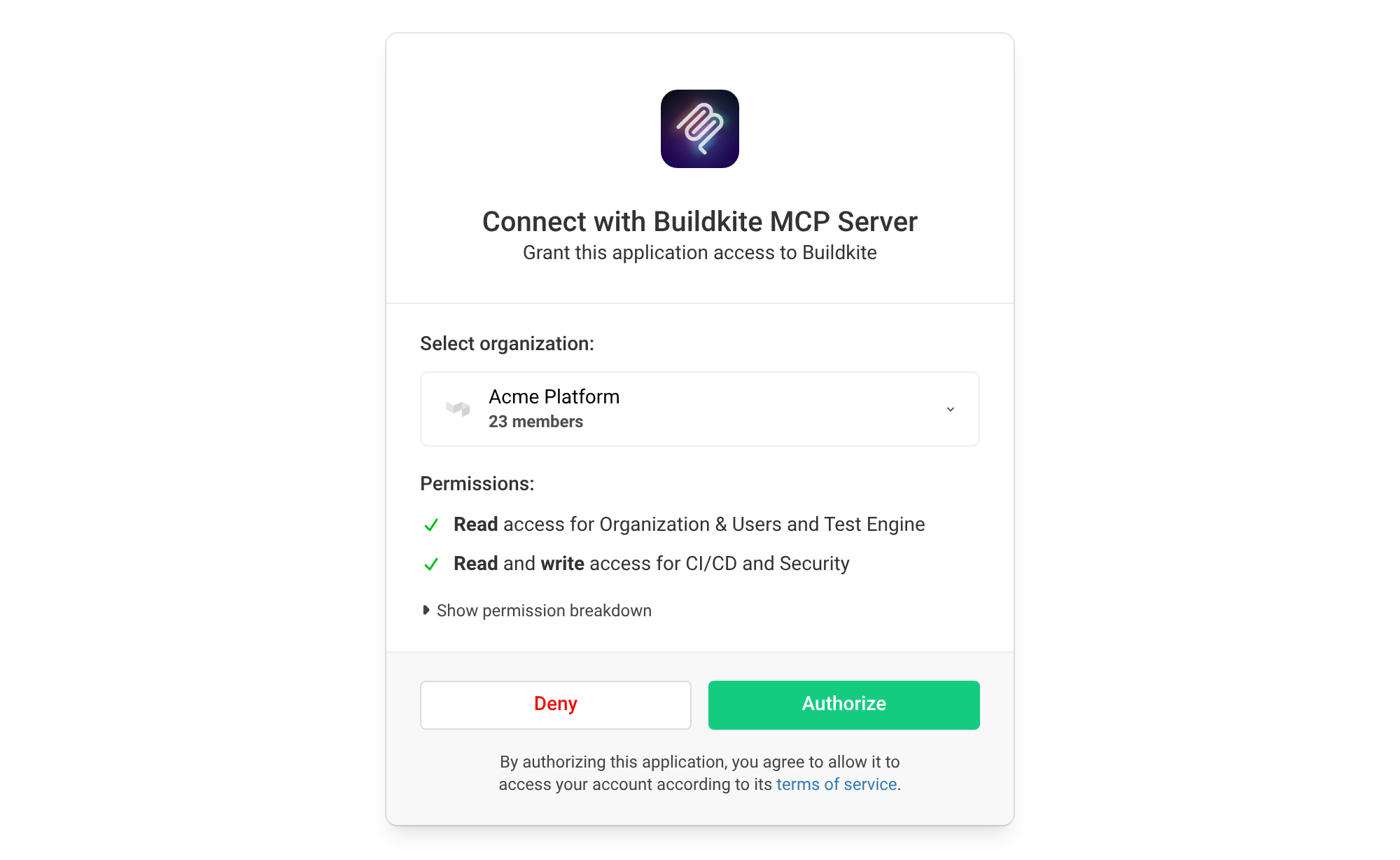
This also works with toolset and read-only URLs, such as https://mcp.buildkite.com/mcp/x/pipelines/readonly?organization=your-organization. It's optional: leave it off and you choose an organization when you authorize, just like before.
Working across several organizations? Add a connection for each one, and each connection sticks with the organization in its URL.
Add ?organization= to your MCP server URL and the right organization will be ready the next time you authorize. New to the Remote MCP Server? Get started here.
Samuel
You deserve better CI.
Get started for free with a full month of our all-access trial.