# Buildkite Visual Studio Code extension
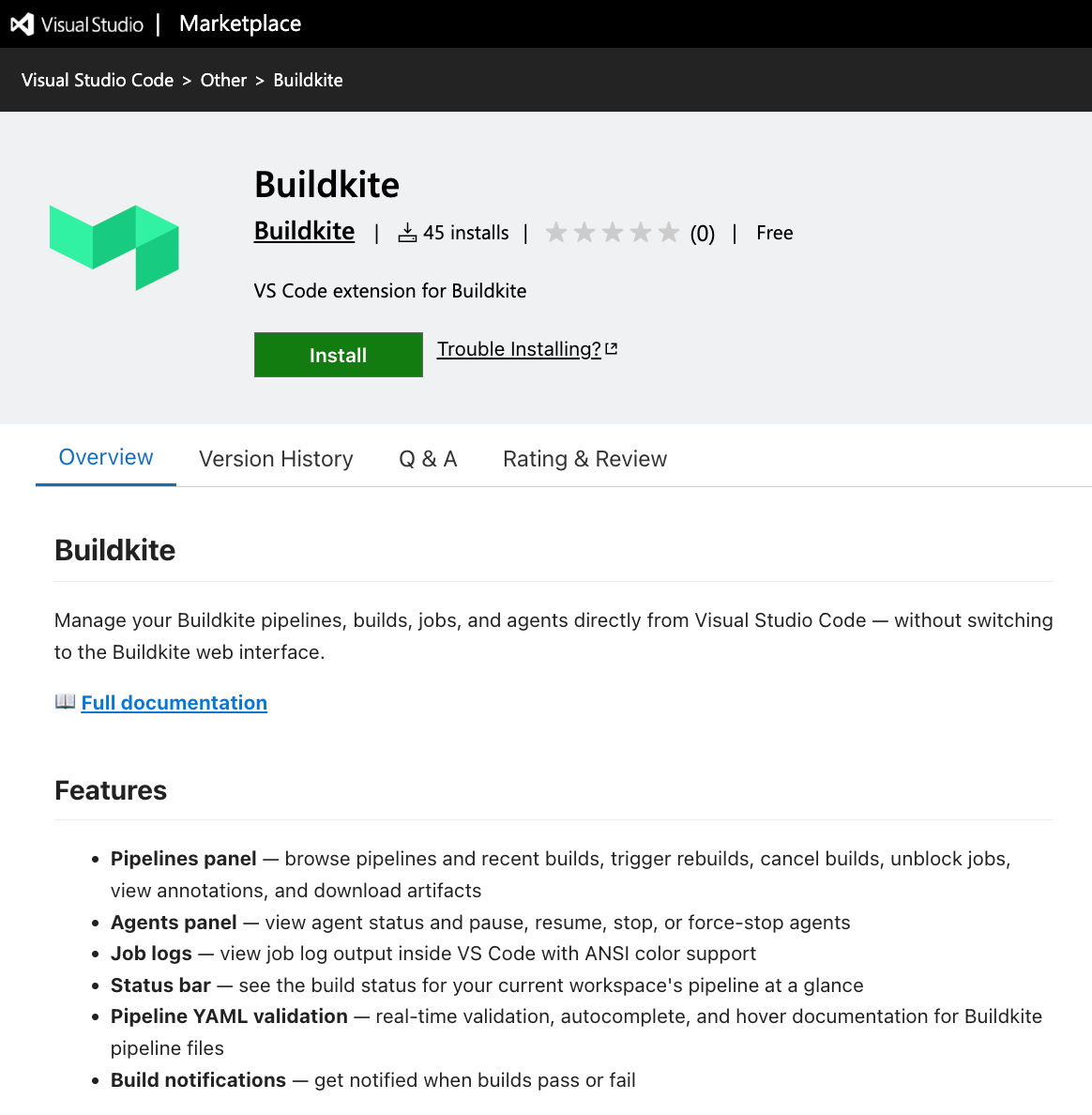
The [Buildkite VS Code extension](https://marketplace.visualstudio.com/items?itemName=Buildkite.buildkite) lets you manage your pipelines, builds, jobs, and agents directly from Visual Studio Code without switching to the Buildkite web interface.
## Requirements
Visual Studio Code 1.105 or later.
## Installation
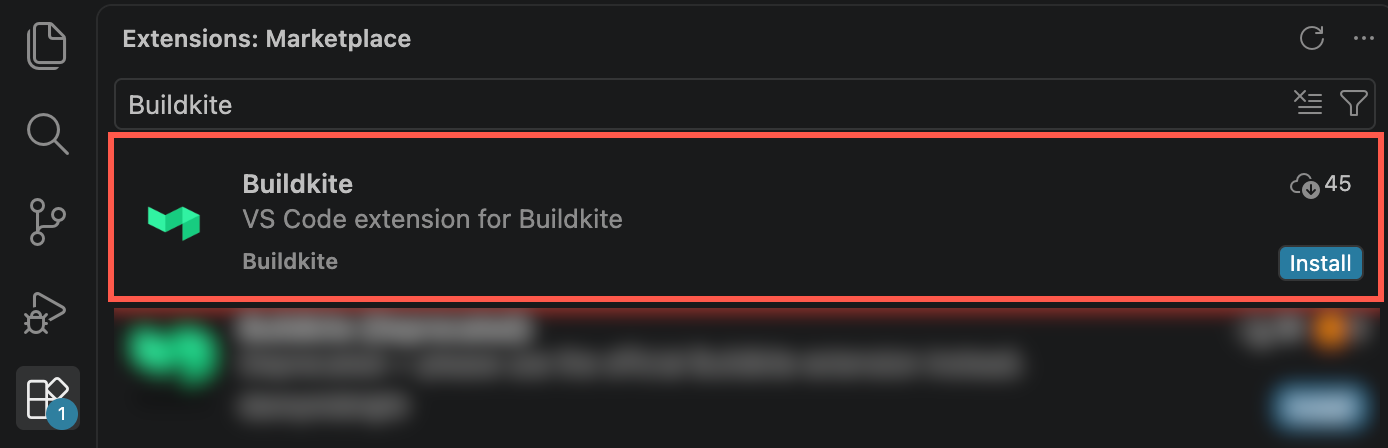
You can install the extension from the Visual Studio Code Marketplace website or from the Extensions view in Visual Studio Code.
### Install from the Visual Studio Code Marketplace
Open the [Buildkite extension listing](https://marketplace.visualstudio.com/items?itemName=Buildkite.buildkite), then select **Install**.
### Install from Visual Studio Code
Select **Extensions** in the Activity Bar, search for `Buildkite`, then select **Install** on the Buildkite extension published by Buildkite.
## Authentication
The extension uses OAuth to authenticate with Buildkite. When you first open a Buildkite panel or run **Buildkite: Sign In** from the Command Palette, you are prompted to sign in with your browser. This opens buildkite.com where you authorize the extension, and then returns you to VS Code.
To sign out, run **Buildkite: Sign Out of OAuth Session** from the Command Palette.
> 📘 Using an API token instead of OAuth
> To use a [Buildkite API access token](/docs/apis/managing-api-tokens) instead, select **Use API Token** when prompted, or run **Buildkite: Set API Token** from the Command Palette. The extension stores the token in VS Code Secret Storage. An API token and an OAuth session can coexist, but the OAuth session takes priority. Signing out of OAuth leaves the API token active. To remove it, run **Buildkite: Clear API Token**.
## Editing pipeline configurations
The extension installs the Red Hat YAML extension, which uses the Buildkite pipeline schema to provide real-time validation, autocomplete, and hover documentation. These features don't require Buildkite authentication.
Open a pipeline configuration with a conventional filename, such as `.buildkite/pipeline.yml`, `.buildkite/pipeline.yaml`, `buildkite.yml`, or a variant such as `.buildkite/pipeline.test.yml`, to apply the schema automatically.
## Pipelines panel
The Buildkite activity bar icon opens a sidebar with three panels. The **Pipelines** panel shows a tree view of your pipelines and their recent builds.
Each pipeline shows up to 10 of its most recent builds. Builds in an active state (running, scheduled, being created, or being canceled) refresh automatically every 60 seconds. Each build shows its individual jobs, including their status.
The following actions are available from the **Pipelines** panel:
- **View on Buildkite**: opens the build in your browser
- **Rebuild**: triggers a new build with the same configuration
- **Create a build**: creates a build on the current Git branch
- **Cancel Build**: cancels a running or scheduled build
- **Unblock Next Job**: unblocks a build waiting at a [block step](/docs/pipelines/configure/step-types/block-step); if the block step defines input fields, you are prompted to fill them in before the build continues
- **View Annotations**: shows build [annotations](/docs/pipelines/configure/annotations) in a panel
- **View Job Log in Output**: opens the job log in a VS Code panel with ANSI color support (see [Job logs](#job-logs))
- **Open Job Log in Browser**: opens the job log in the Buildkite interface
- **Retry Job**: retries a failed or timed-out job
- **Unblock Job**: unblocks a specific block step and prompts for any input fields
- **Download Artifact**: downloads a build [artifact](/docs/pipelines/configure/artifacts) to your local machine
For builds with more than 40 jobs, the panel shows a summary or the jobs that need attention. Select the final item in the job list to open all steps in your browser.
### Managing pipelines
To add a pipeline, select **Create Pipeline** in the **Pipelines** panel toolbar, then enter the pipeline name, repository URL, and optionally a description and default branch.
Right-click any pipeline in the tree to access pipeline management actions:
- **Edit Pipeline Settings**: update the pipeline name, description, default branch, or repository URL
- **Archive Pipeline**: hides the pipeline from the active list
- **Unarchive Pipeline**: restores an archived pipeline
- **Delete Pipeline**: permanently deletes the pipeline (requires confirmation)
Use **Filter Pipelines to Current Repository** in the panel toolbar to show only pipelines whose repository matches a Git remote in the current workspace. Use **Show All Pipelines** to clear the filter. The extension remembers this selection for each workspace.
## Agents panel
The **Agents** panel lists your organization's connected agents and their current status. The list refreshes every 60 seconds. The following actions are available per agent:
- **Pause Agent**: prevents the agent from accepting new jobs
- **Resume Agent**: allows a paused agent to accept jobs again
- **Stop Agent**: gracefully stops the agent after its current job completes
- **Force Stop Agent**: immediately terminates the agent and its running job
To narrow the list, select the filter icon in the panel toolbar and enter a query. You can filter by agent name, hostname, or any agent metadata, such as a [queue](/docs/agent/queues) tag (for example, `queue=deploy`). Select the close icon to clear an active filter.
## Support panel
The **Support** panel provides a search field for querying the Buildkite documentation, along with a link to contact support.
You can also run **Buildkite: Search Docs** from the Command Palette to search documentation directly and open results in your browser.
## Job logs
To view a job's log output inside VS Code, right-click the job in the **Pipelines** panel and select **View Job Log in Output**. Despite the command name, the extension opens the log in a dedicated panel rather than the VS Code Output panel. The panel renders ANSI colors and shows the pipeline name, build number, and job name as context.
To open the log in your browser instead, select **Open Job Log in Browser**.
## Status bar
The extension adds a status indicator to the VS Code status bar that shows the build status for the pipeline associated with your current workspace. The extension identifies the matching pipeline by reading your Git remote URL and comparing it against your Buildkite pipelines.
The status bar updates every 60 seconds. Selecting it opens actions for matched pipelines and their latest builds. You can open a pipeline or build in your browser, or rebuild the latest build. Use the keyboard shortcut `Cmd+Alt+P` (macOS) or `Ctrl+Alt+P` (Windows and Linux) to open the same picker.
By default, the status bar is hidden when no matching pipeline is found. To show it regardless, set `buildkite.statusBar.showWhenNoMatch` to `true` in your VS Code settings.
## Build notifications
The extension sends a notification when a build that it is tracking passes, fails, is canceled, is skipped, or does not run. To start tracking an active build, expand its pipeline in the **Pipelines** panel. Status bar polling alone does not enable completion notifications.
Notifications are enabled by default for passing and unsuccessful builds. Notifications include actions for opening the build or viewing a build error. Selecting **View Error** opens the failed job's log. If multiple jobs failed, the extension prompts you to choose a job.
Use the following VS Code settings to configure notifications:
- `buildkite.notifications.enabled`: enables or disables all build notifications
- `buildkite.notifications.notifyOnPass`: controls notifications for passed builds
- `buildkite.notifications.notifyOnFail`: controls notifications for failed, canceled, skipped, or not-run builds
## Configuration
You can configure the extension using VS Code settings. In addition to the notification settings, the following options control common behavior:
- `buildkite.pipelines.filterToWorkspaceByDefault`: filters the **Pipelines** panel to pipelines that match the current workspace repository by default
- `buildkite.statusBar.showWhenNoMatch`: shows the Buildkite status bar item when no pipeline matches the current workspace
- `buildkite.oauth.scopePreset`: sets the OAuth access level to `all`, `read-only`, or `custom`
- `buildkite.oauth.scopes`: lists the OAuth scopes to request when `buildkite.oauth.scopePreset` is `custom`
OAuth setting changes take effect after you sign out and sign in again.