# Alarm and recover actions
When conditions from a [monitor](/docs/pipelines/configure/tests/workflows/monitors) in your test suite's [workflow](/docs/pipelines/configure/tests/workflows) triggers an [_alarm_ or _recover_ action event](/docs/pipelines/configure/tests/workflows#how-they-work), there are several automatic actions that Test Engine can perform. Workflows are subject to a rate limit. See [Rate limit](/docs/pipelines/configure/tests/workflows#rate-limit) for more information.
## Add or remove label
The **Add label** or **Remove label** action lets you respectively add a label to or remove a label from a test. These two actions are often set as a pair, for example, an alarm action will label a test **flaky**, and the corresponding recover action will remove the **flaky** label.
## Change state
The **Change state** action lets you [change the state](/docs/pipelines/configure/tests/test-suites/test-state-and-quarantine#lifecycle-states) (enabled, muted, skipped) of a test. For example, you can set the alarm action to change the state of a test to "muted", and the recover action to change the state of a test to "enabled", which will allow you to [run builds more reliably](/docs/pipelines/speed-up-builds-with-bktec#increase-build-reliability-with-test-states).
## Send webhook notification
The **Send webhook notification** action lets you send JSON payloads through HTTP requests to specific URL endpoints of third-party applications, which let these applications react to activities on your Test Engine workflows as they happen. The content of the payloads differ depending on the workflow monitor configured.
### Transition count
```json
{
"subject": {
"type": "test",
"test_id": "08b99391-8caa-88c7-8d45-98c6fd3f94b7",
"test_full_name": "Enumerated spec 1",
"test_location": "./spec/enumerated_spec.rb:22",
"test_url": "http://buildkite.localhost/organizations/buildkite/analytics/suites/te-sample/tests/08b99391-8caa-88c7-8d45-98c6fd3f94b7"
},
"workflow_id": "0198a11d-9486-7ac5-a87a-d55d2642cd3f",
"workflow_url": "http://buildkite.localhost/organizations/buildkite/analytics/suites/te-sample/workflows/0198a11d-9486-7ac5-a87a-d55d2642cd3f",
"event": "workflow.alarm",
"workflow_event": {
"type": "transition_count"
}
}
```
### Passed on retry
```json
{
"type": "passed_on_retry",
"execution_id": "01996fcb-3dba-72dd-bdc0-9bf9e06bf4fe",
"timestamp": "2025-09-22T05:00:14.650Z",
"execution_run_id": "01996fcb-3dba-7b9a-9c53-b1ffb0960f31",
"execution_commit_sha": "abc123",
"execution_branch": "main",
"window_days": 7,
"window_executions": 100,
"commit_count_threshold_high": 2,
"commit_count_threshold_low": 0,
"executions_in_window": 42,
"days_in_window": 6,
"commit_count": 1
}
```
### Probabilistic flakiness
```json
{
"type": "probabilistic_flakiness",
"timestamp": "2025-09-22T05:00:16.506Z",
"branch_filter": "main",
"score": 0.2,
"score_threshold_high": 0.1,
"score_threshold_low": 0.08
}
```
## Send Slack notification
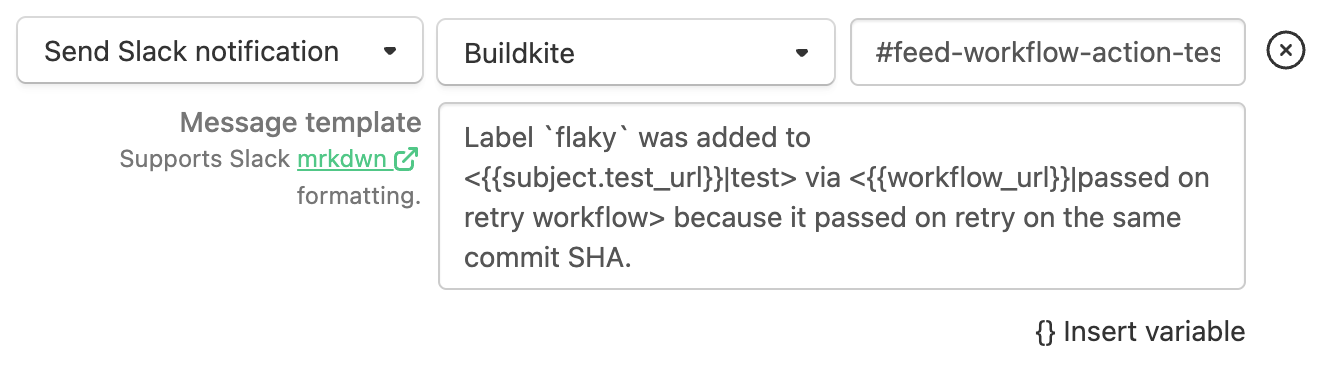
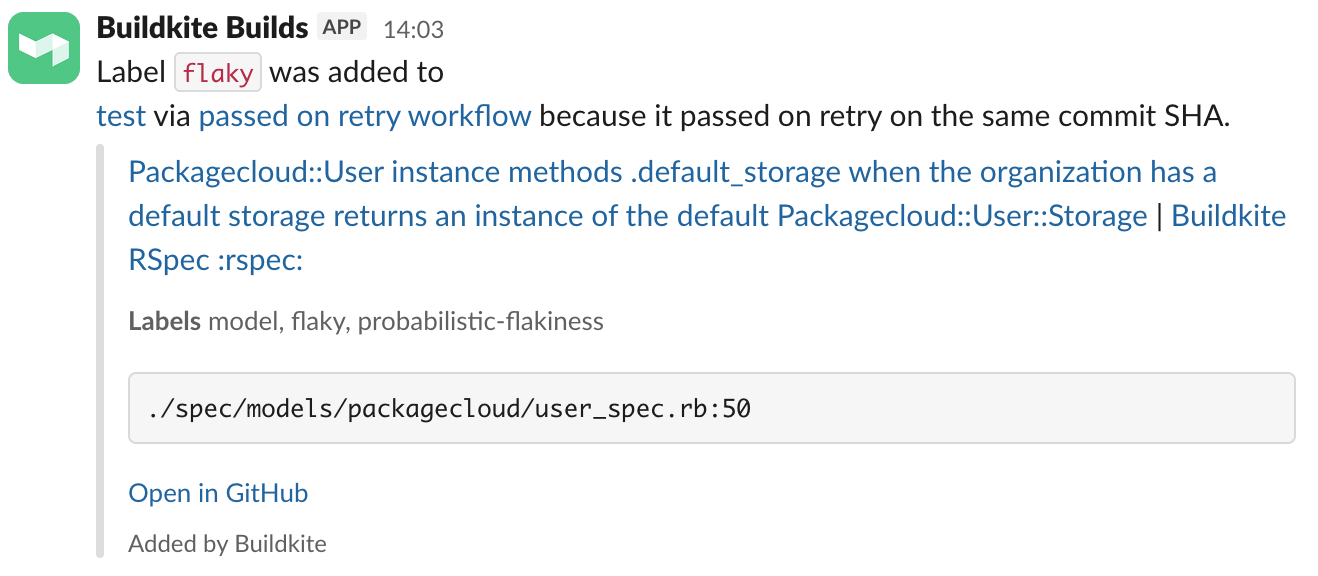
The **Send Slack notification** action lets you send a Slack notification about a test. The Slack notification will be sent to a specified Slack channel in a connected Slack workspace, and the message supports the use of [mrkdwn](https://docs.slack.dev/messaging/formatting-message-text/#formatting) as a presentation format. The message also supports interpolation of workflow event information used in [webhook notifications](#send-webhook-notification). A full variable list is also available in the Test Engine **Workflows** interface for your test suite.
To use this feature, ensure your Buildkite organization administrator has [connected to your Buildkite organization to your Slack workspace](/docs/pipelines/integrations/notifications/slack-workspace).
## Creating a Linear issue
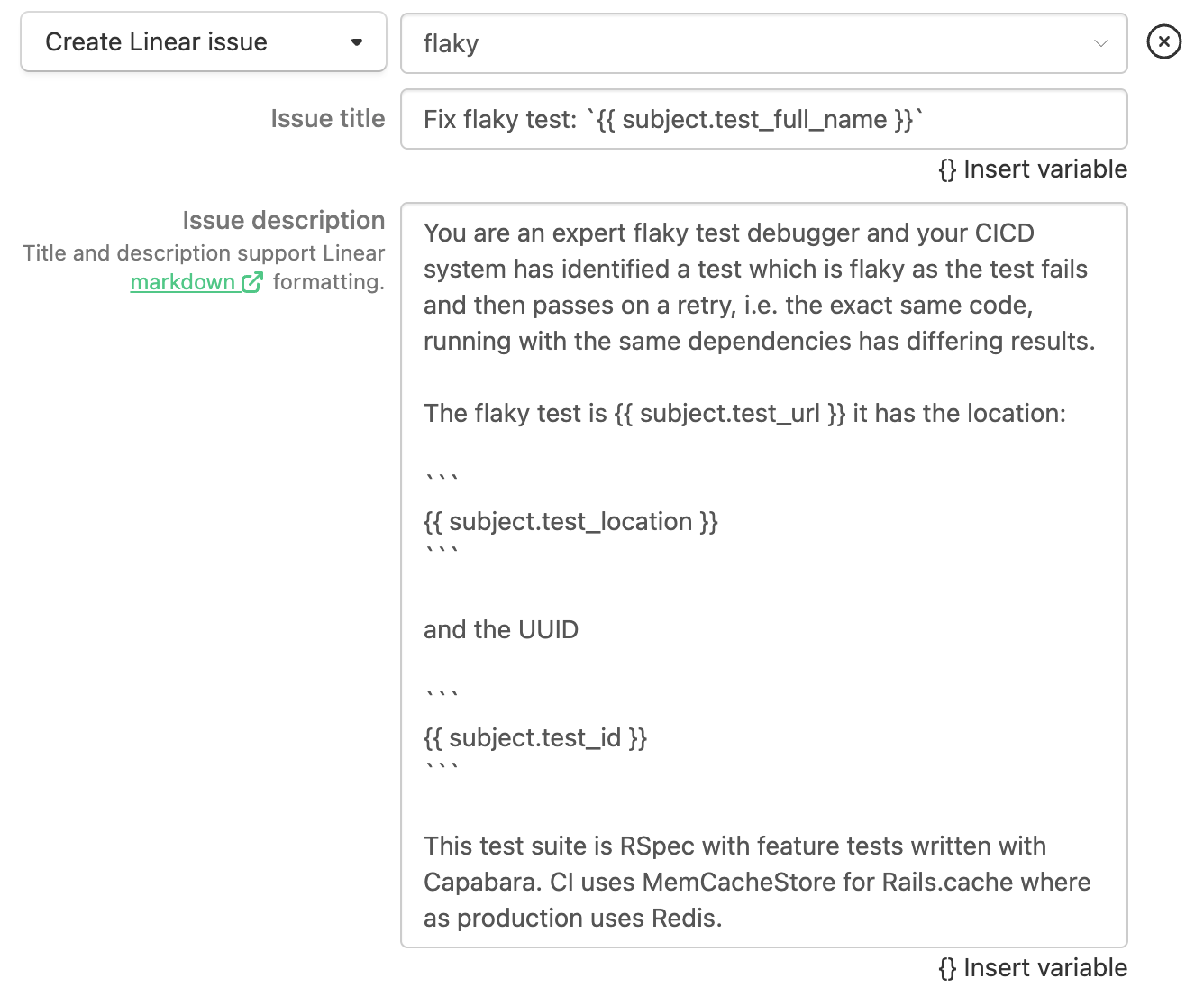
The **Create Linear issue** action lets you create a Linear issue about a test. The issue will be created for the specified Linear team, with a custom title and description. Linear issues created for a test are visible in the **Issues** tab on the individual test view page, and the test's status is synchronized with Linear so that you know if someone is working on the issue.
The title and description fields support [Linear-flavoured Markdown](https://linear.app/docs/editor#text-styling). The message also supports interpolation of workflow event information used in [webhook notifications](#send-webhook-notification), and a full variable list available in Test Engine's **Workflows** interface for your test suite.
To use this feature, ensure your Buildkite organization administrator has [connected to your Buildkite organization to your Linear account](/docs/pipelines/integrations/notifications/linear).