# Test suites overview
In Test Engine, a _test suite_ (or _suite_) is a collection of [tests](/docs/pipelines/glossary#test). A suite has a _run_, which is the execution of tests in a suite. A pipeline's build may create one or more of these runs.
Many organizations set up one suite per test framework, for example, one suite for RSpec, and another suite for Jest. Others use a common standard, such as JUnit XML, to combine tests from multiple frameworks to set up custom backend and frontend suites.
Each suite inside Test Engine has a unique API token that you can use to route test information to the correct suite. Pipelines and test suites do not need to have a one-to-one relationship.
> 📘 Test suite API token versus user API access token
> The test suite API token is only for uploading test results to the test suite. To perform other operations using the [Test Engine REST API](/docs/apis/rest-api/test-engine/suites) (such as listing [suites](/docs/apis/rest-api/test-engine/suites#list-all-suites), [runs](/docs/apis/rest-api/test-engine/runs#list-all-runs), or [tests](/docs/apis/rest-api/test-engine/tests#list-tests)), use a [Buildkite API access token](/docs/apis/managing-api-tokens) for your user account with the appropriate scopes.
When [creating a test suite](/docs/pipelines/getting-started#add-a-test-suite-create-a-test-suite) for your development project, you'll need to have configured the appropriate _test collectors_ for your project's test runners before your test suite can fully function and start collecting test data. Learn more about how to do this from the [Test collection](/docs/pipelines/configure/tests/test-collection) section of these docs.
To delete a suite, or regenerate its API token, go to suite settings.
## Tests tab on build pages
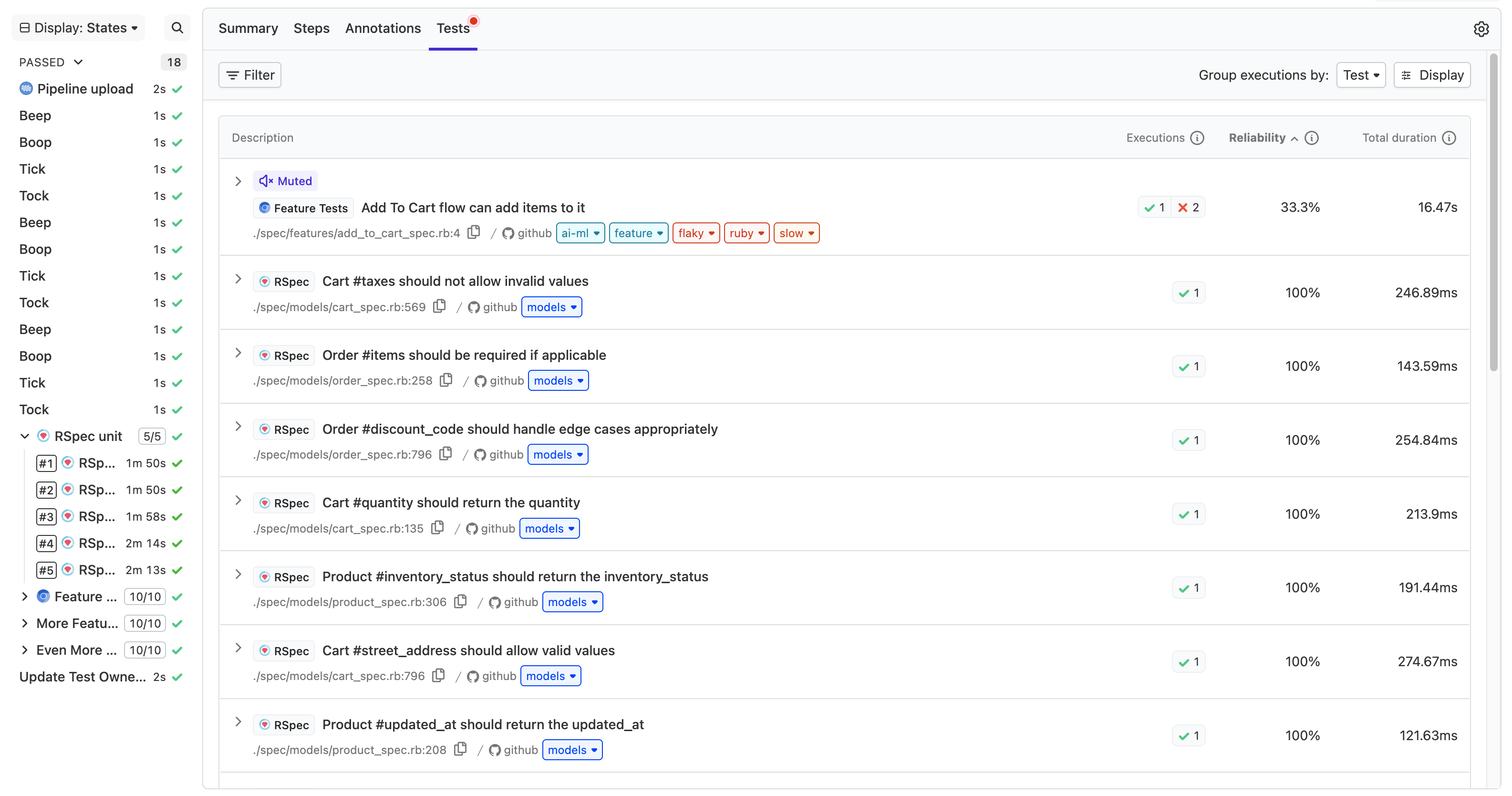
Test Engine information is available on your test pipeline's build pages, in the [new build view](/docs/pipelines/build-page).
You can view the failing tests in a given build, and filter the test executions to analyze and surface trends about your test suite.
You can filter by result, state, owner, label, suite, and tag. Filtering by suite is useful when a build has tests from multiple suites (for example, RSpec and Jest), allowing you to focus on the results from specific suites.
You can also select **Display** to change the columns displayed on the **Tests** tab, so that other types of aggregate data (for example, average duration) appear. By default, the executions are grouped by test so that retried tests appear together.
When tests are grouped, select **Expand failures** to expand all failure reasons at once, or select **Collapse failures** to collapse them again.
The suite filter on the **Tests** tab supports two operators:
- `is`: includes only the selected suite in the results
- `is not`: excludes the selected suite from the results
You can combine multiple suite filters to include or exclude several suites at once.
You can save your filter and display column selections as [saved views](/docs/pipelines/configure/tests/test-suites/saved-views) directly from the **Tests** tab.
## Parallelized builds
In CI/CD, a build's tests can be made to run in parallel using features of your own CI/CD pipeline or workflow tool. Parallelized pipeline/workflow builds typically run and complete faster than builds which are not parallelized.
In Buildkite Pipelines, you can run tests in parallel when they are configured as [parallel jobs](/docs/pipelines/tutorials/parallel-builds#parallel-jobs).
> 📘
> When tests are run in parallel across multiple agents, they can be grouped into the same run by defining the same `run_env[key]` environment variable. Learn more about this environment variable and others in [CI environments](/docs/pipelines/configure/tests/test-collection/ci-environments).
> The best way to coordinate the distribution of tests in a parallelized build is by implementing [test splitting](/docs/pipelines/speed-up-builds-with-bktec).
## View by branch
All test suites have a _default branch_ so you can track trends for your most important branch, and compare it to results across _all branches_. Organizations typically choose their main production branch as their default, although this is not required. All Test Engine views are filtered automatically to the default branch.
In addition to the default branch, you can add any number of additional _stored branches_. Stored branches accept prefix wildcard operators, and are useful for merge queues and other similar naming conventions. You can filter Test Engine views by a stored branch, or any branch, by using the branch filter.
To configure your branches, go to suite settings. In most cases, branch name is tracked automatically as part of the [core tags](/docs/pipelines/configure/tests/test-suites/tags#core-tags) Test Engine ingests on your behalf.
## Tracking reliability
Test Engine calculates reliability of both your entire test suite and individual tests as a measure of pass/fail rate over time.
_Reliability_ is defined as percentage calculated by:
- Test suite reliability = `passed_runs / (passed_runs + failed_runs) * 100`
- Individual test reliability = `passed_test_executions / (passed_test_executions + failed_test_executions) * 100`
Other test execution results such as `unknown` and `skipped` are ignored in the test reliability calculation.
In Test Engine, a run is marked as `failed` as soon as a test execution fails, regardless of whether it passes on a retry. This helps surface unreliable tests. You can have a situation where a build eventually passes on retry in a Pipeline, and the related run is marked as `failed` in Test Engine.
## Trends and analysis
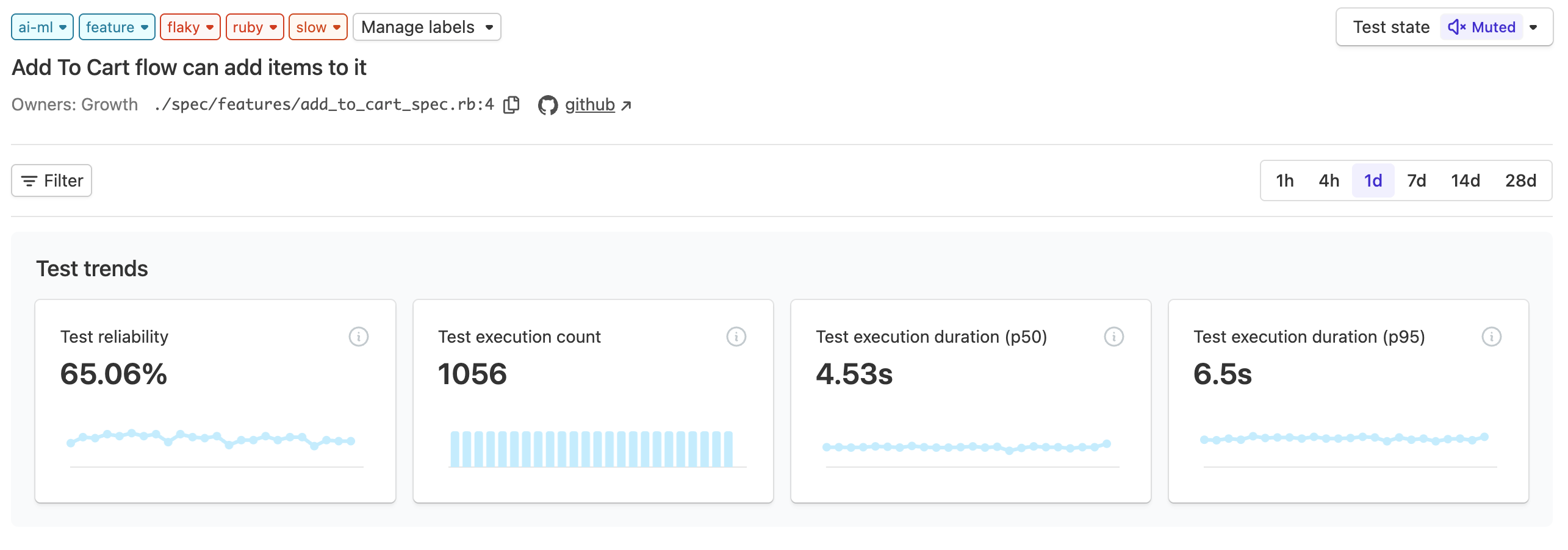
Once your test suite is set up, you'll have many types of information automatically calculated and displayed to help you surface and investigate problems in your test suite.
The Summary and Test pages are able to be filtered by branch, result (for example, pass, fail), state (for example, enabled, disabled), owner (for example, core-team, platform-team), label (for example, flaky, slow, feature-test) and [tag](/docs/pipelines/configure/tests/test-suites/tags). This allows greater flexibility and deeper analysis into the performance of your test suite.
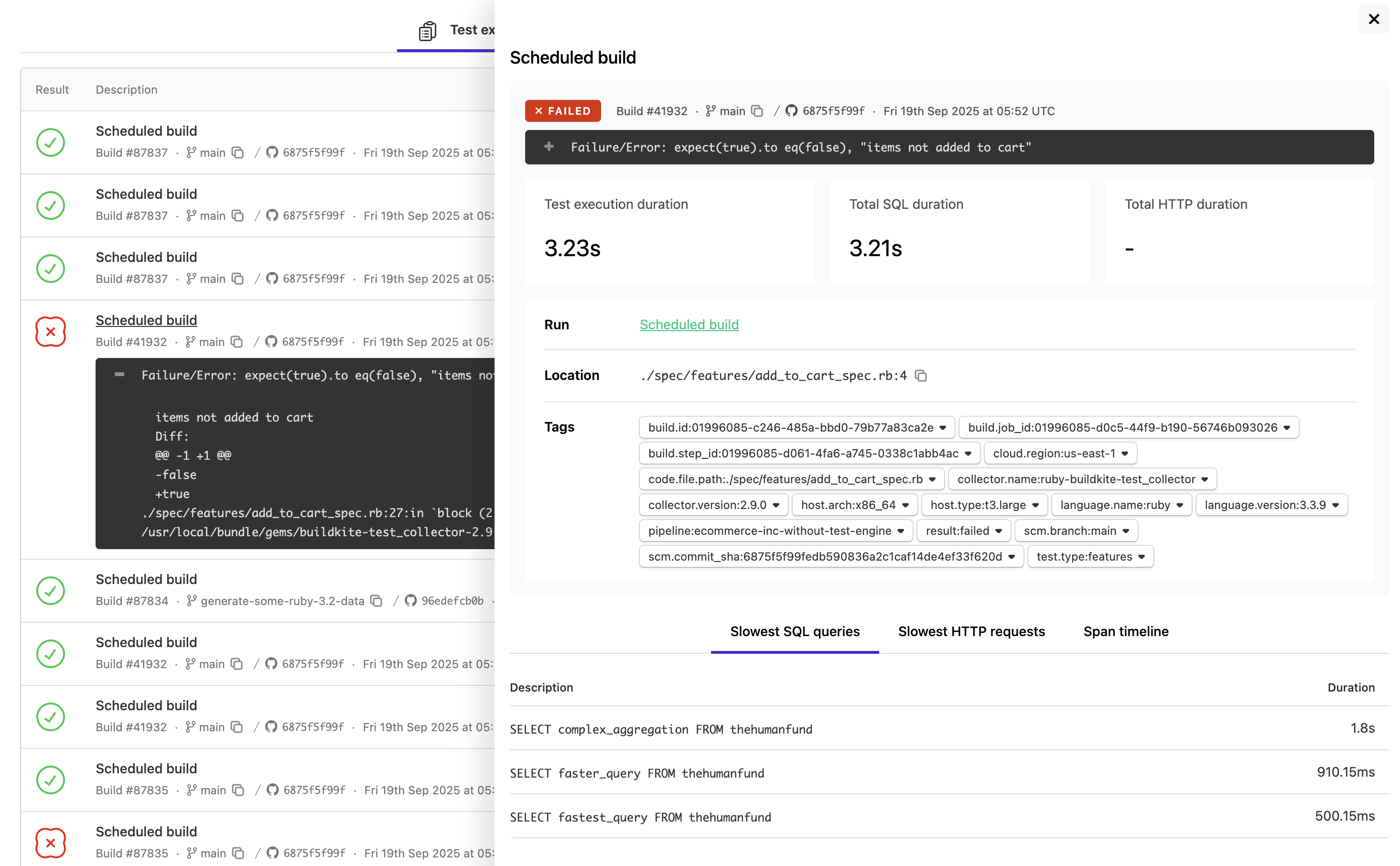
Select any individual test execution to see more trend and deep-dive information.
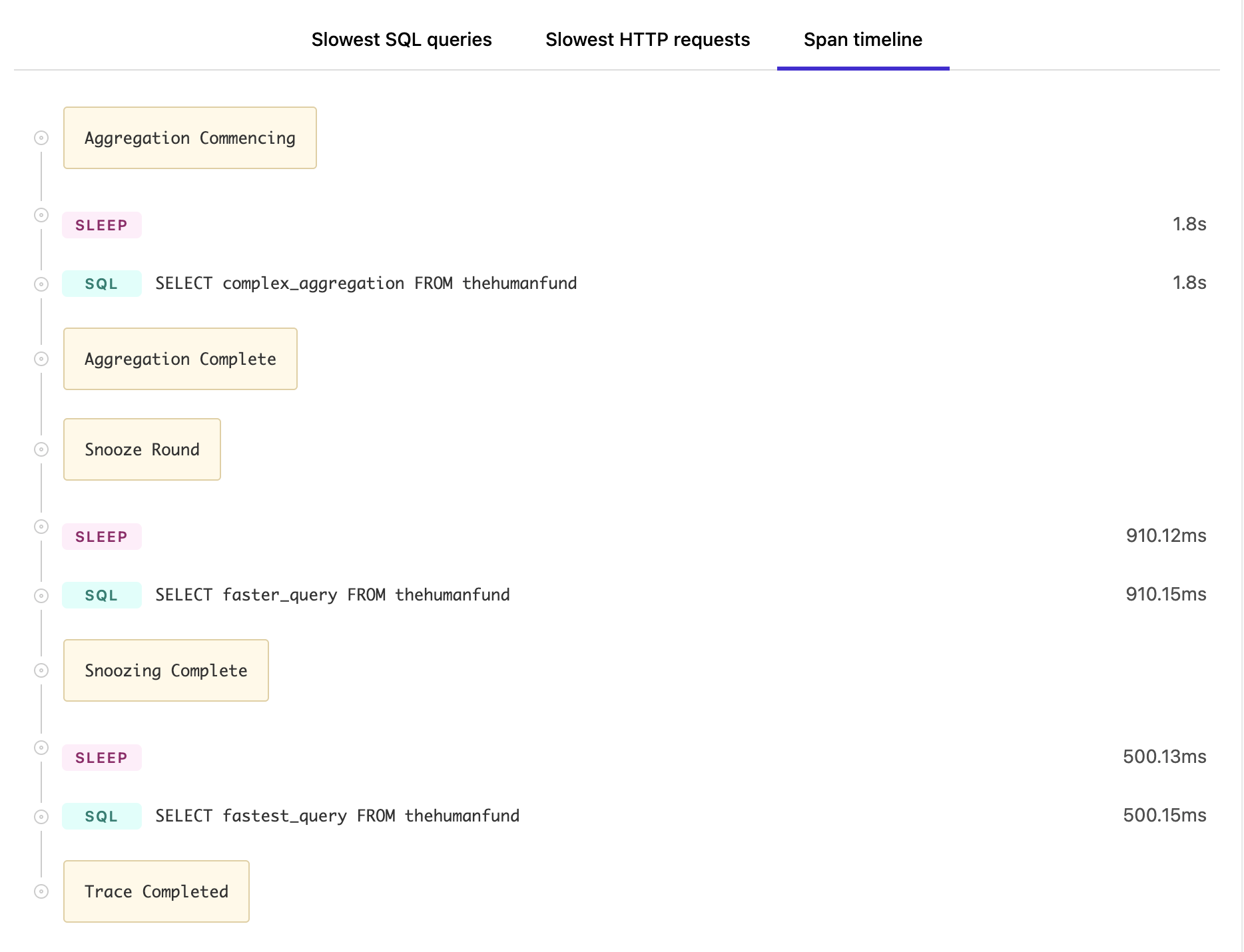
You can also annotate span information to help investigate problems, and see detailed log information inside Test Engine for any failed test or run.