# Cache volumes
_Cache volumes_ (also known as _volumes_) are external volumes attached to Buildkite hosted agent instances, and are scoped to specific [Buildkite clusters](/docs/pipelines/security/clusters). These volumes are attached on a best-effort basis depending on their locality, expiration and current usage, and therefore, should not be relied upon as durable data storage.
Volumes are useful if your pipeline builds on Buildkite hosted agents have jobs that make use of build dependencies, use Docker images, which can be stored in [container cache volumes](#container-cache-volumes), or Git mirrors, which can be stored in [Git mirror volumes](#git-mirror-volumes). Managing build dependencies, Docker images, and Git mirrors in volumes can greatly speed up the duration of your overall pipeline builds.
> 📘 Other caching approaches
> [Buildkite Cache](/docs/pipelines/configure/cache) is a separate, key-based caching feature that works on both Buildkite hosted agents and self-hosted agents. Unlike a volume, it restores the specific entry a job asks for, and its cache registries support access policies. To compare the two features, see [Buildkite Cache compared with cache volumes](/docs/pipelines/best-practices/caching#choosing-a-caching-approach-buildkite-cache-compared-with-cache-volumes).
By default, volumes:
- Are disabled, although you can enable them by providing a list of paths containing files and data to temporarily store in these volumes at the pipeline- or step-level.
- Are scoped to a pipeline and are shared between all steps in the pipeline.
Volumes act as regular disks, and have the following properties on Linux:
- They use NVMe storage, delivering high performance.
- They are formatted as a regular Linux filesystem (for example, ext4)—therefore, these volumes support any Linux use-cases.
Volumes on macOS are a little different, with [sparse bundle disk images](https://en.wikipedia.org/wiki/Sparse_image#Sparse_bundle_disk_images) being utilized, as opposed to the bind mount volumes used by Linux. However, macOS volumes are managed in the same way as they are for Linux volumes.
> 📘 Volume retention
> Volumes are retained for up to 14 days maximum from their last use. Note that 14 days is not a guaranteed retention duration and that the volumes may be removed before this period ends.
> Design your workflows to handle volume misses, as volumes are designed for temporary data storage.
## Volume configuration
Volume paths can be [defined in your `pipeline.yml`](/docs/pipelines/configure/defining-steps) file using the `cache` key at either the root level of your pipeline YAML, or as an [attribute on a step](/docs/pipelines/configure/step-types). Defining paths for the `cache` key in your pipeline YAML or attribute on a step will implicitly create a volume for the pipeline.
When volume paths are defined, the volume is mounted under `/cache/bkcache` in the agent instance. The agent links sub-directories of the volume into the paths specified in the configuration. For example, defining `cache: "node_modules"` in your `pipeline.yml` file will link `./node_modules` to `/cache/bkcache/node_modules` in your agent instance.
Volumes can be created by specifying a name for the volume, which allows different steps within a pipeline to each use a different named volume. Each step can only reference one cache volume, and volumes cannot be shared across multiple pipelines.
A volume is identified by its pipeline and its name, so branches and builds that resolve to the same volume name share one volume. A job on one branch can write data that later jobs on other branches read, so don't put anything in a shared volume that a build on another branch shouldn't be able to read or replace. To keep branches apart, include the branch in the volume name.
When requesting a volume, you can specify a size. The volume provided will have a minimum available storage equal to the specified size. In the case of a volume hit (most of the time), the actual volume size is: last used volume size + the specified size.
Defining a top-level volume configuration (using the `cache` key at the root level of your pipeline YAML) sets the default volume for all steps in the pipeline. Any volume defined within a step will be merged with the top-level volume configuration, with step-level volume size taking precedence when the same volume name is specified at both levels. Paths from both levels will be available when using the same volume name.
### Example
```yaml
cache:
paths:
- "node_modules"
size: "100g"
steps:
- command: "yarn run build"
cache: ".build"
- command: "yarn run test"
cache:
- ".build"
- command: "rspec"
cache:
paths:
- "vendor/bundle"
size: 20g
name: "bundle-volume"
```
{: codeblock-file="pipeline.yml"}
> 📘 Cache volume limitations
> Each step can only reference one cache volume. The `cache` attribute on a step resolves to a single volume regardless of format: a string path, an array of paths, or a map with `paths`, `name`, and `size` attributes. To use multiple named volumes in a pipeline, assign different `name` values in the `cache` configuration of different steps, as shown in the example above.
### Required attributes
| `paths` | A list of paths to volumes. Paths are relative to the working directory of the step. Absolute references can be provided in the `cache` paths configuration relative to the root of the instance. _Example:_ `- ".volume"` `- "/tmp/volume"` Be aware that if you do not need to include other [optional attributes](#volume-configuration-optional-attributes) and you only need to define a single path for your volume, you can omit this `paths` attribute, and simply add your path to the end of the `cache` attribute or key. _Example:_ `cache: ".volume"` |
| --- | --- |
> 📘
> On [macOS hosted agents](/docs/agent/buildkite-hosted/macos), the instance is a full macOS snapshot, including the standard file system structure. Volume paths cannot be specified on reserved paths, such as `/tmp` and `/private`. However, sub-paths such as `/tmp/volume` are acceptable.
### Optional attributes
| `name` | A name for the volume. This allows you to use multiple volumes in a single pipeline. If no `name` is specified, the value of this attribute defaults to the pipeline slug. The name must start and end with a letter or number, contain only letters, numbers, and hyphens, and be no more than 100 characters. Environment variable interpolation for `${BUILDKITE_*}` is supported so you can create branch-scoped or dynamic volume names. _Example:_ `"node-modules-volume"` _Example with environment variable:_ `"${BUILDKITE_BRANCH}-cache"` |
| --- | --- |
| `size` | The size of the volume. The default size is 20 gigabytes, which is also the minimum volume size that can be requested. Units are in gigabytes, specified as `Ng`, where `N` is the size in gigabytes, and `g` indicates gigabytes. _Example:_ `"20g"` |
## Lifecycle
At any point in time, multiple versions of a volume may be used by different jobs.
The first request creates the first version of the volume, which is used as the parent of subsequent _forks_ until a new parent version is committed. A _fork_ in this context is a "moment", or a readable/writable "snapshot", version of the volume in time.
When requesting a volume, a fork of the previous volume version is attached to the agent instance. This is the case for all volumes, except for the first request, which starts empty, with no volumes attached.
Each job gets its own private copy of the volume, as it existed at the time of the last committed volume version.
Version commits follow a "last write" model—whenever a job terminates successfully (that is, exits with exit code `0`), volumes attached to that job have a new parent committed—the final flushed volume of the exiting agent instance.
Whenever a job fails, the volume versions attached to the agent instance are abandoned.
### Non-deterministic nature
Volumes, by their very nature, only provide _non-deterministic_ access to their data. This means that when you issue a command in a Buildkite pipeline to retrieve data or an image from a volume (for example, a previously built Docker image in the [container cache volume](#container-cache-volumes) with a `docker pull` command), then the command may instead retrieve the data or image from a different source, such as the [remote Docker builder's](/docs/agent/buildkite-hosted/linux/remote-docker-builders) [local storage/file system](/docs/agent/buildkite-hosted/linux/remote-docker-builders#benefits-of-using-remote-docker-builders-improved-cache-hit-rates-and-reproducibility), which could be very fast, or Docker Hub, which could be very slow by comparison due to bandwidth limitations.
This behavior results from a volume's data availability, which depends on the following factors:
- How often the volume is used.
- How often the data on the volume is changed.
If a volume is used more frequently by pipelines, and the volume's data (for example, Docker images) remains relatively static, then the availability of the volume and its data (that is, its volume hit rate) to commands in your Buildkite pipeline, such as `docker pull`, is likely to be higher, resulting in a greater chance that the required data is sourced from the volume.
If, however, the volume is used less frequently and its data is relatively dynamic, then the volume hit rate is likely to be lower, meaning that the data will be sourced from other sources and external repositories.
> 📘
> If you need _deterministic_ storage for [Open Container Initiative (OCI)](https://opencontainers.org/) images, such as Docker images, you can use your [internal container registry](/docs/agent/buildkite-hosted/internal-container-registry) instead of a cache volume.
## Container cache volumes
Container cache volumes are types of volumes used to cache Docker images between builds.
Container cache volumes store images, not Docker's build cache. To learn how layers are reused between Docker image builds, see [How Docker image builds run](/docs/agent/buildkite-hosted/linux/remote-docker-builders#how-docker-image-builds-run).
> 📘
> This feature is only available to [Linux hosted agents](/docs/agent/buildkite-hosted/linux).
### Enabling container cache volumes
To enable container cache volumes feature for Buildkite hosted agents on your cluster:
1. Select **Agents** in the global navigation to access the **Clusters** page.
1. Select the Buildkite cluster in which to enable the container cache volumes feature.
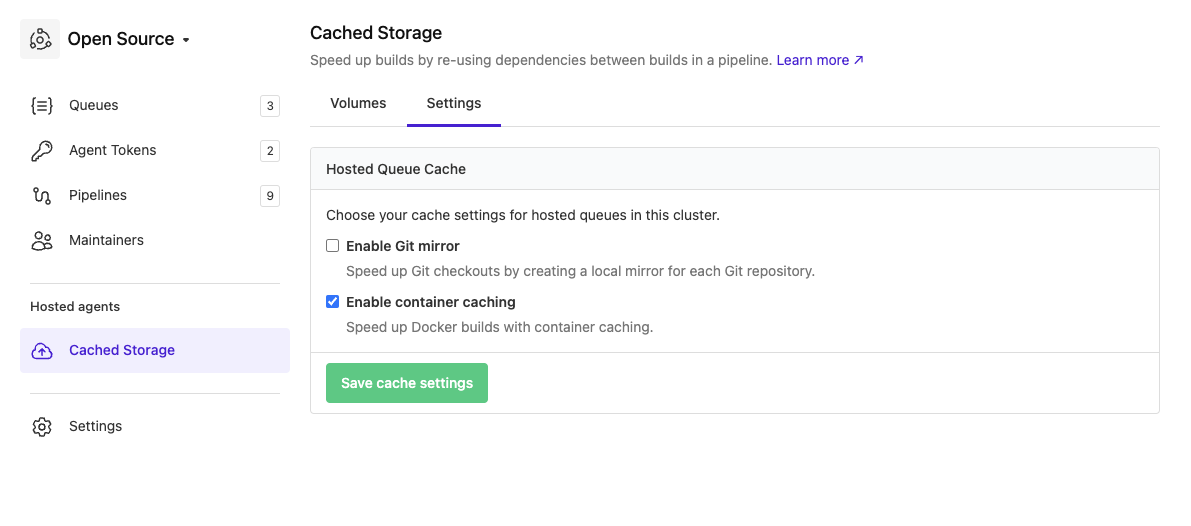
1. Select **Cached Storage**, then select the **Settings** tab.
1. Select **Enable container caching**, then select **Save cache settings** to enable container caching for the selected hosted cluster.
Once enabled, container cache volumes will be used for all Buildkite hosted agent jobs in that cluster. A separate volume is created for each pipeline, and is done so upon the pipeline being built for the first time.
A container cache volume's name is based on your pipeline's slug followed by a slash, then "container-cache". For example, **pipeline-slug/container-cache**.
You can view all of your current cluster's volumes through its **Cached Storage** > **Volumes** page.
## Git mirror volumes
Git mirror volumes are specialized types of volumes designed to accelerate Git operations by caching the Git repository between builds. This is useful for large repositories that are slow to clone.
### Enabling Git mirror volumes
To enable Git mirror volumes feature for Buildkite hosted agents on your cluster:
1. Select **Agents** in the global navigation to access the **Clusters** page.
1. Select the Buildkite cluster in which to enable the Git mirror volumes feature.
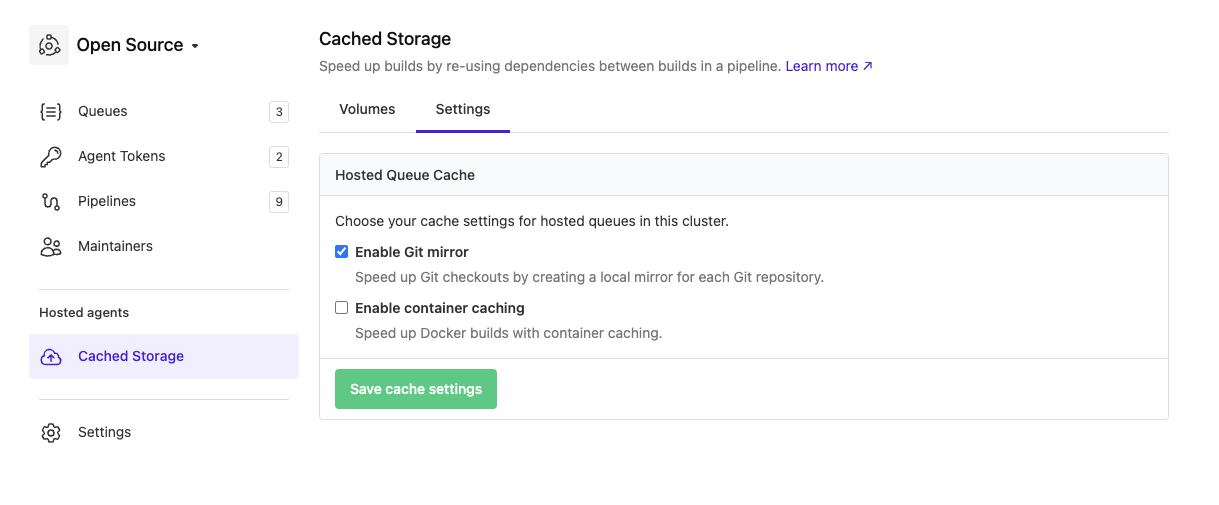
1. Select **Cached Storage**, then select the **Settings** tab.
1. Select **Enable Git mirror**, then select **Save cache settings** to enable Git mirrors for the selected hosted cluster.
Once enabled, Git mirror volumes will be used for all Buildkite hosted agent jobs using Git repositories in that cluster. A separate volume is created for each repository, and is done so upon the first pipeline (whose source is the repository) being built for the first time.
A Git mirror volume's name is based on your cloud-based Git service's account and repository name, and begins with "buildkite-git-mirror-". For example, **buildkite-git-mirror-my-account-my-repository**.
You can view all of your current cluster's volumes through its **Cached Storage** > **Volumes** page.
## Viewing and deleting volumes
Deleting a [container cache](#container-cache-volumes) or [Git mirror](#git-mirror-volumes) volume, or any additional [local builder volume](/docs/agent/buildkite-hosted/linux/remote-docker-builders#layer-caching-without-remote-docker-builders) (also listed on the **Cached Storage** > **Volumes** page) may affect the build time for the associated pipelines until the new volume is established.
To view a list of volumes and delete one:
1. Select **Agents** in the global navigation to access the **Clusters** page.
1. Select the Buildkite cluster whose volume is to be deleted.
1. Select **Cached Storage**, then select the **Volumes** tab to view a list of all existing container cache and Git mirror volumes.
1. Select **Delete** for the volume you wish to remove.
1. Confirm the deletion by selecting **Delete Cache Volume**.